Mix & Master and export
Your finished song on a mixing desk: balance the levels, shape each instrument with EQ, pan and reverb, give the master a finish, and export a WAV or MP3.
-
Open Mix & Master
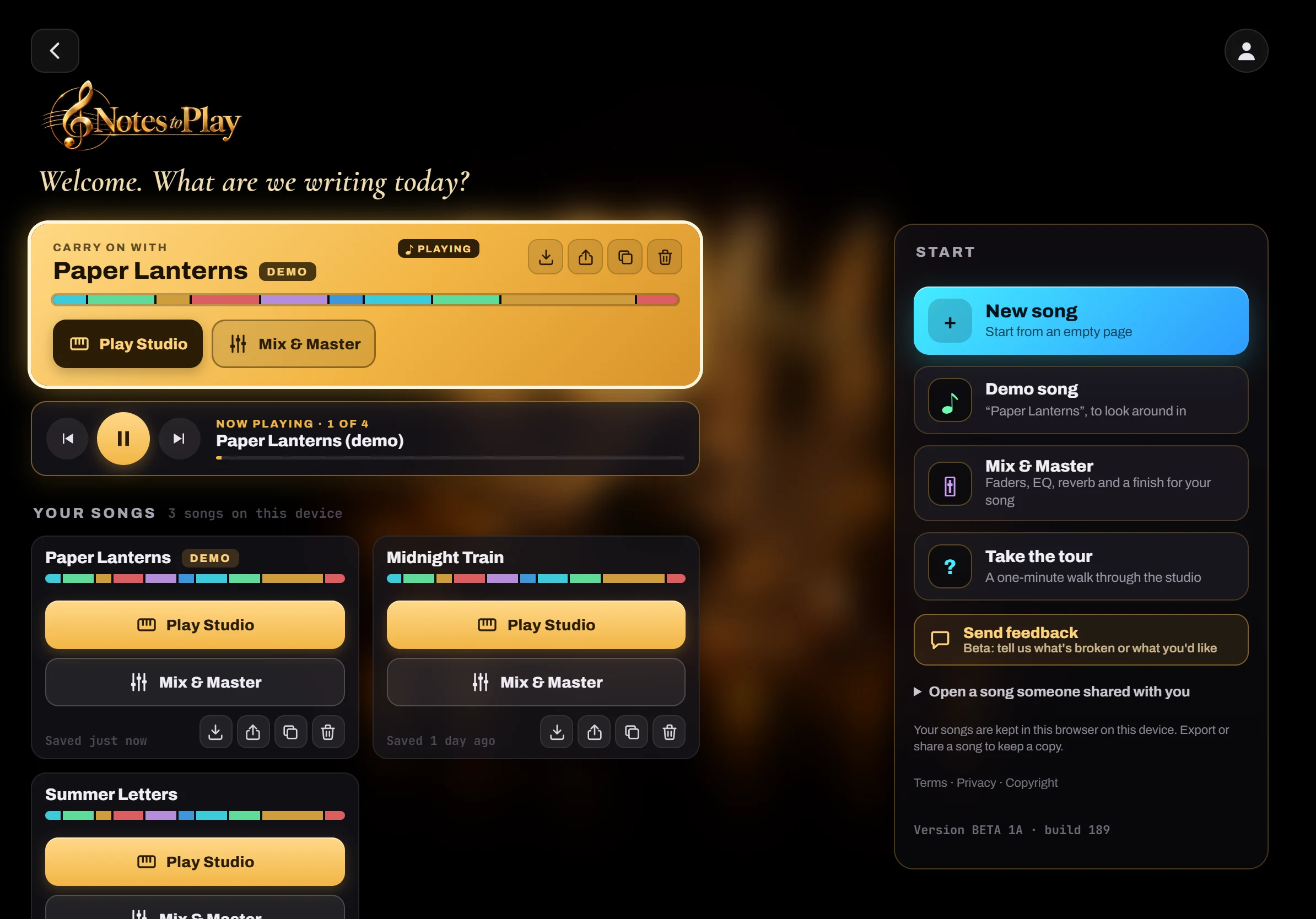
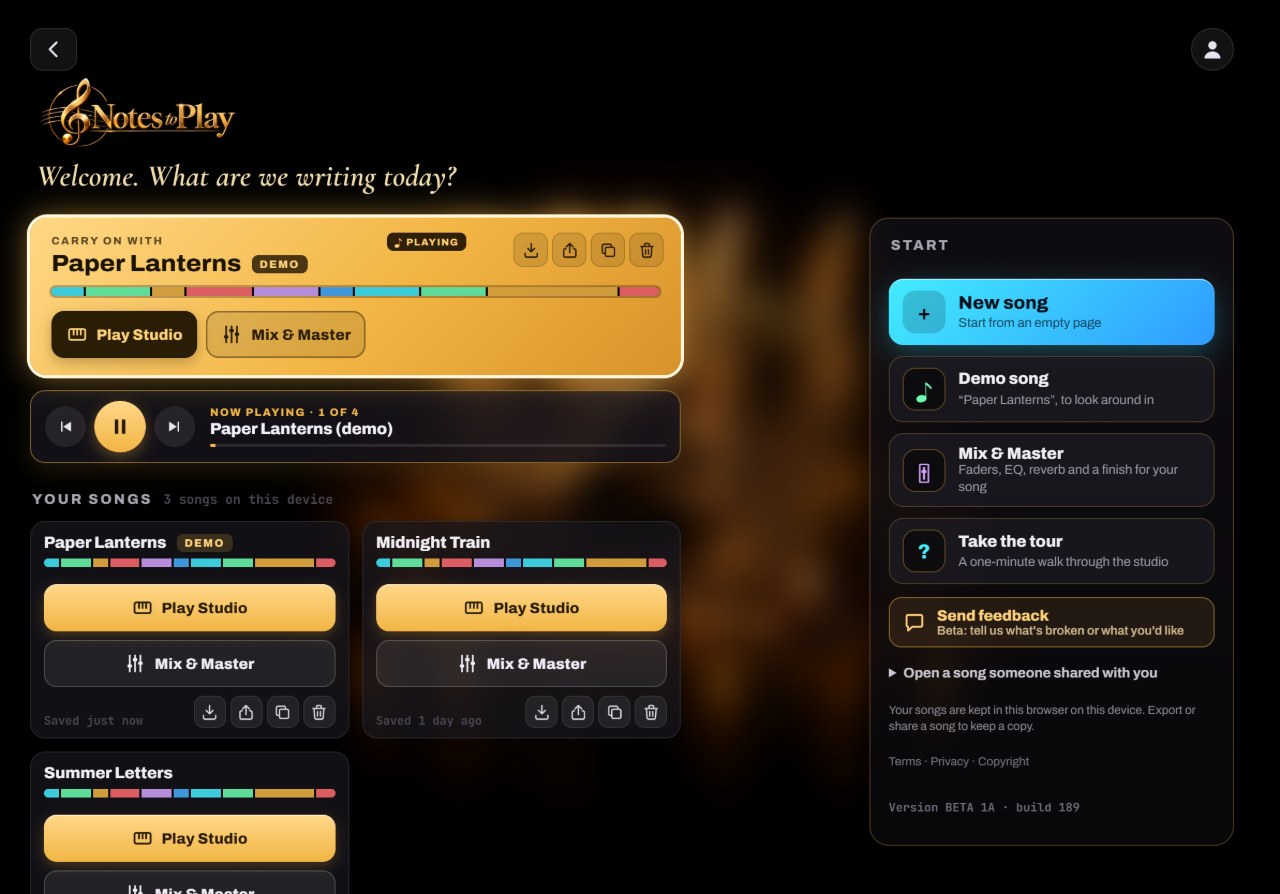
Every song on the Start screen has two doors: Play Studio, where you write and play, and Mix & Master, where you finish the sound. In the studio, the Mix button in the header takes you there too.
- 1Mix & Master: open this song on the mixing desk
- 2Play Studio: back to the instruments
- 3Play all: your songs one after another
-
Balance the levels
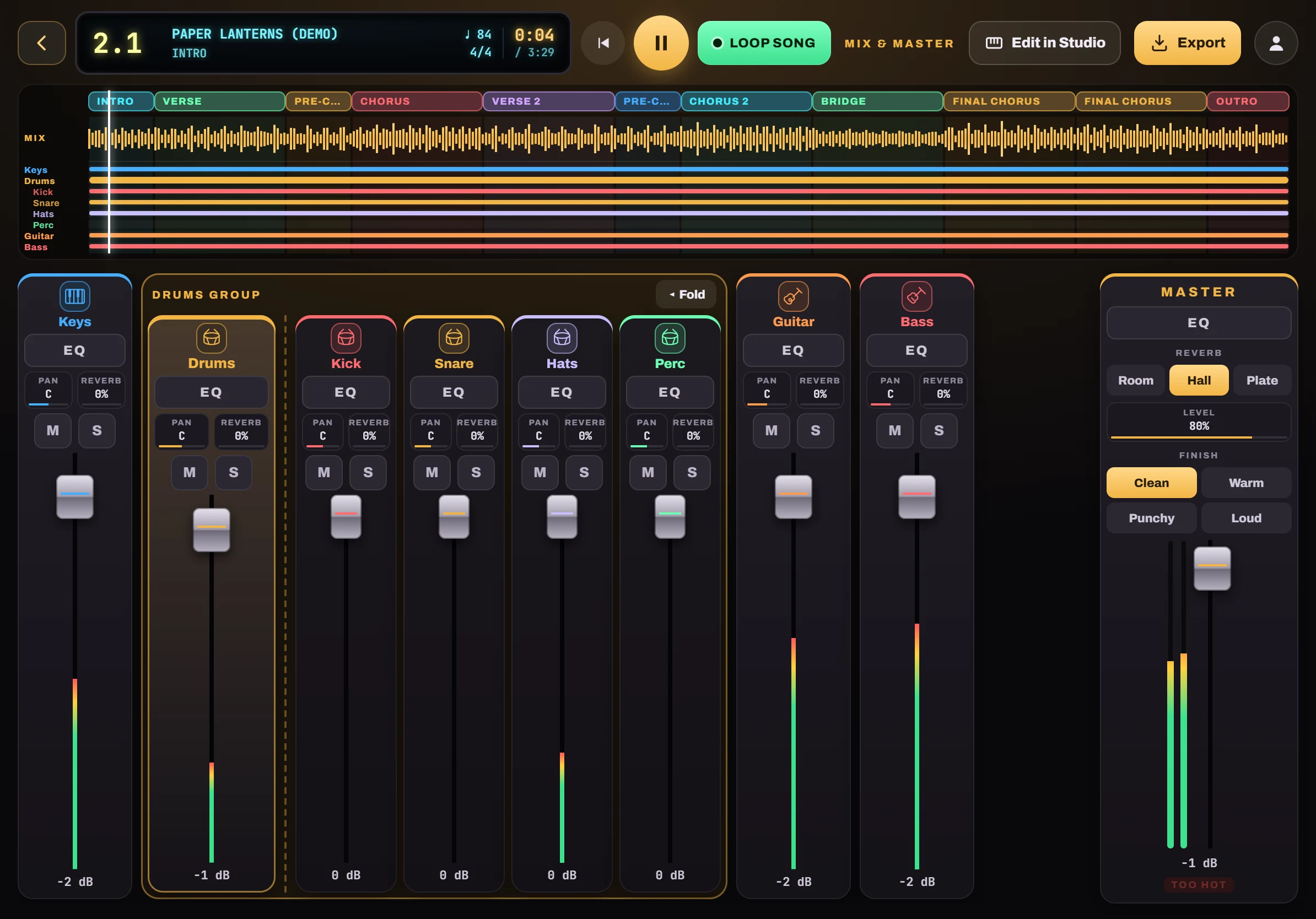
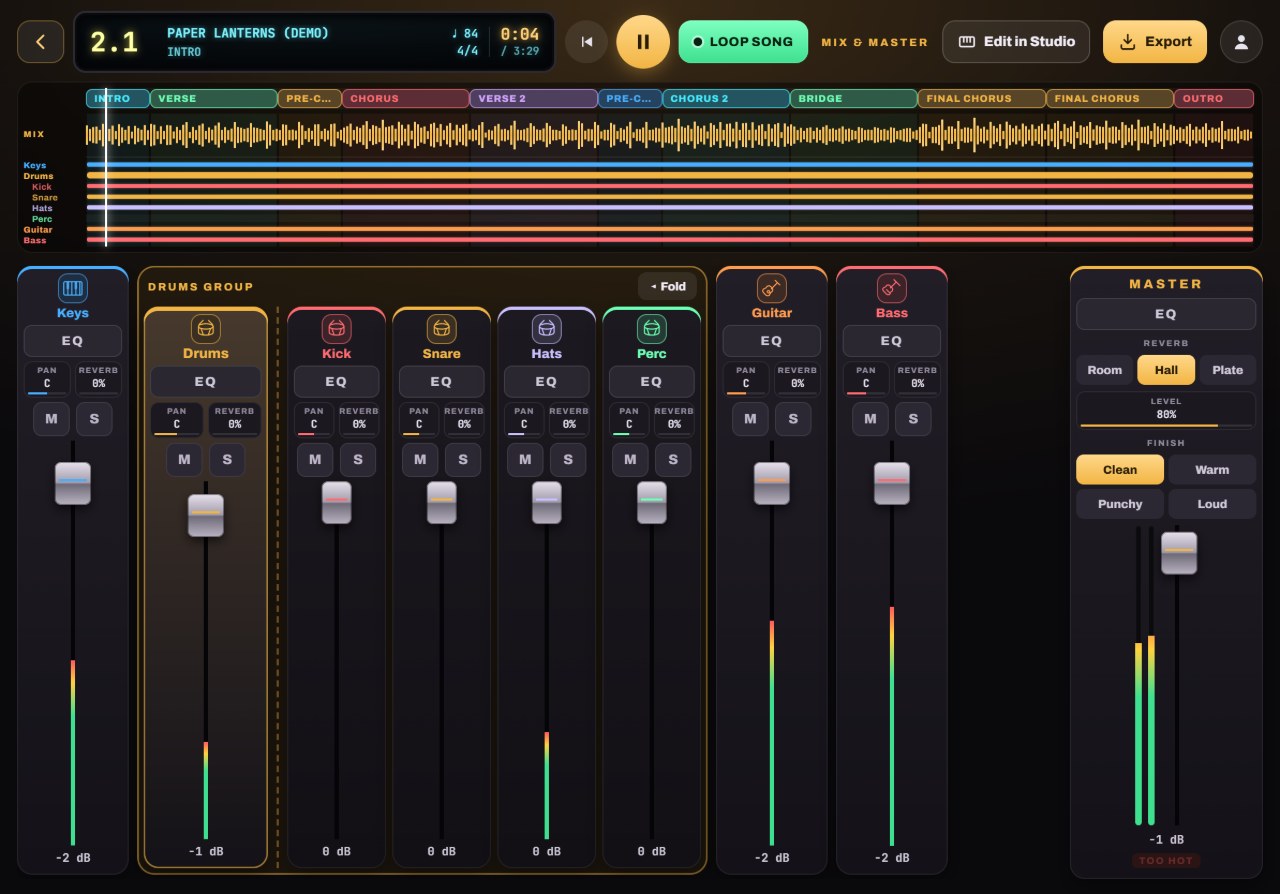
Each instrument gets a strip with a long fader. Bring up what should lead and tuck the rest underneath. The drums come as a group with its own fader, and the kit pieces sit beside it so you can lift just the snare. The timeline across the top shows the whole song, a wave of the mix and a line for every instrument.
- 1A fader per instrument, with its level lit inside the groove
- 2M mutes, S solos
- 3Drums are a group: one fader, plus Kick, Snare, Hats and Perc (Fold hides them)
- 4Tap a part to jump there or loop it
- 5Activity lines: where each instrument plays
-
Shape each sound with EQ
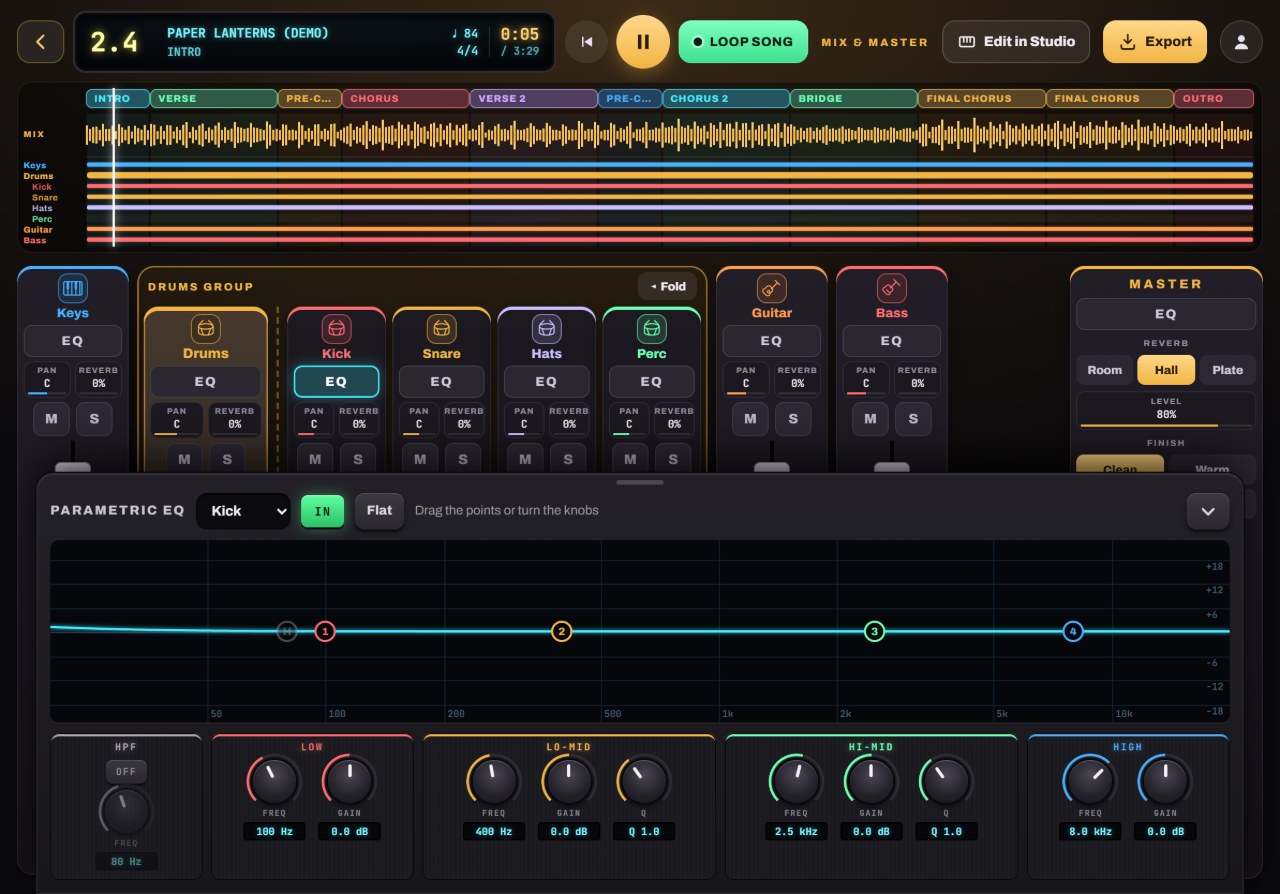
Tap EQ on a strip and a full parametric EQ slides up: a high-pass filter, low, two mids and high. Drag the numbered points or turn the knobs. Try cutting a little low end from the guitar so the bass has room.
- 1EQ on any strip opens its equalizer
- 2Drag a point: up to boost, down to cut
- 3Or turn the knobs: frequency, gain, Q
- 4Flat resets it; IN switches it on and off
-
Place it with pan and reverb
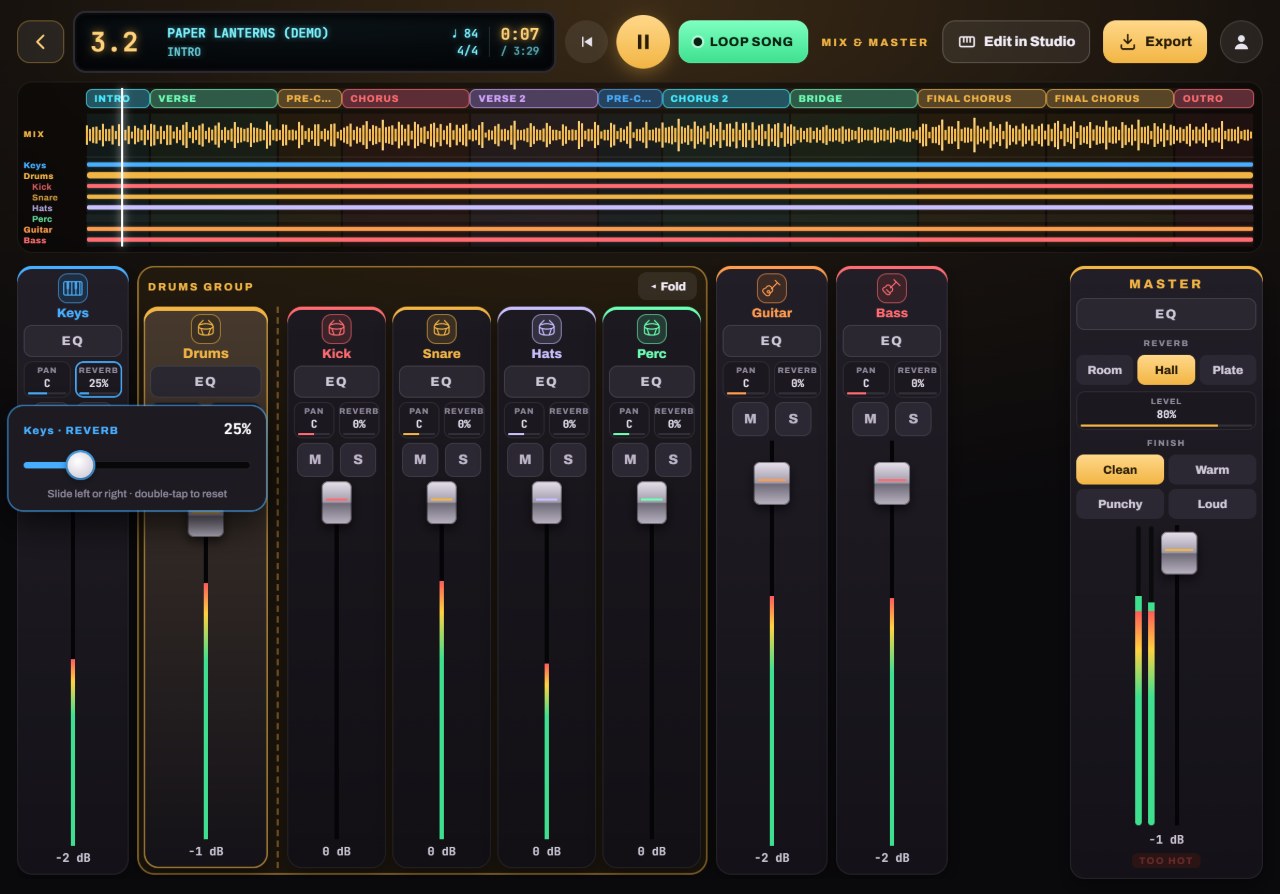
Tap the small Pan or Reverb chip on a strip and a slider drops down. Spread the guitar a little left and the keys a little right, and give the keys or a melody a touch of reverb.
- 1Pan and Reverb chips on every strip
- 2A slider drops down: slide, or double-tap to reset
-
Finish the master
The Master strip has its own EQ, a reverb for the whole song, and a one-tap Finish: Clean, Warm, Punchy or Loud. Each adds compression and a limiter so the song sounds finished and stays clear of clipping. Keep the meters out of the red.
- 1Reverb: Room, Hall or Plate, with a level
- 2Finish: Clean, Warm, Punchy or Loud
- 3Left and right output meters
-
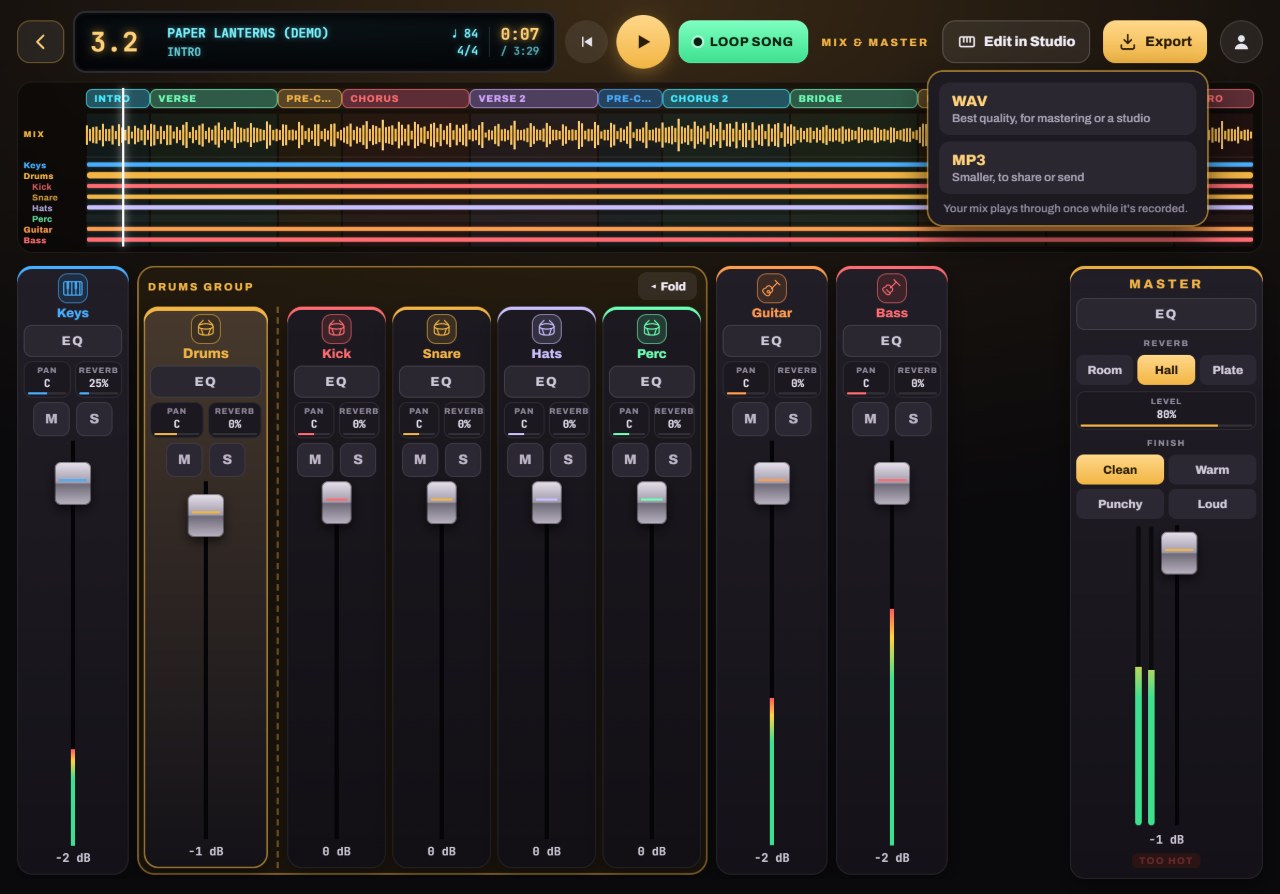
Export a WAV or MP3
Tap Export and choose WAV or MP3 (192 kbps). The song plays through once while it is recorded. On a computer it saves to a folder; on a tablet or phone the share sheet opens so you can save it or send it.
- 1Export
- 2WAV: best quality, for mastering or a studio
- 3MP3: smaller, to share or send
- 4Edit in Studio: back to the instruments
Tip: Changed your mind about a chord? Edit in Studio takes you straight back, and your mix is still there when you return.