Recording takes, headphones and MIDI keyboards
Record a vocal or guitar take, line it up with the song, use headphones, and connect a MIDI keyboard or a remote.
-
Add an audio channel
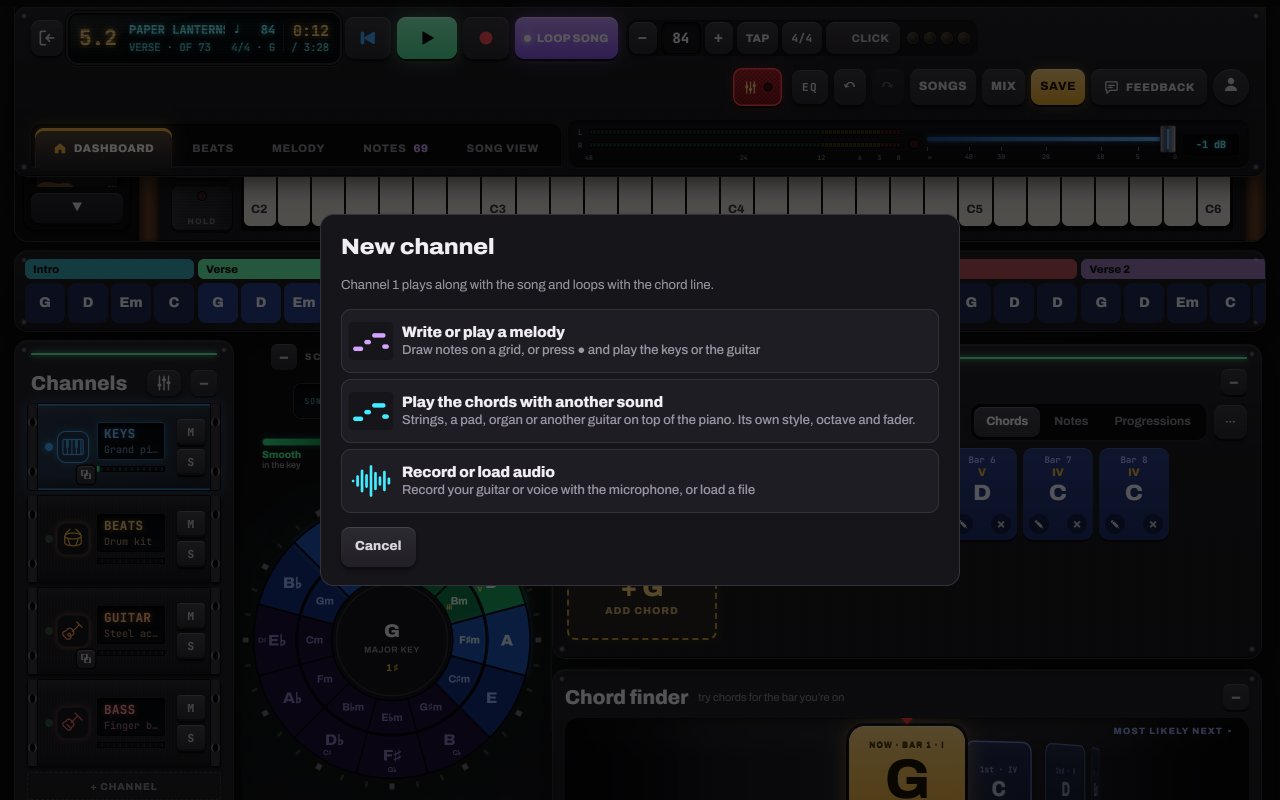
Tap + Channel → Record or load audio. The first time, the browser asks to use the microphone. Allow it. Plug in wired headphones so the speakers don’t leak into the take.
- 1Record or load audio
-
Record a take
Press ● Record take. You get a one-bar count-in, then it records one pass (the part you’re looping, or from here to the end of the song) and stops by itself. Press ● while the song plays to punch in.
- 1● Record take (New take once you have one)
- 2One-bar count-in on or off
- 3Loop part or Loop song decides what one take covers
Tip: Notes to Play subtracts your device’s speaker and microphone delay automatically. Bluetooth headphones add extra delay; wired is best for recording.
-
Line it up and trim it
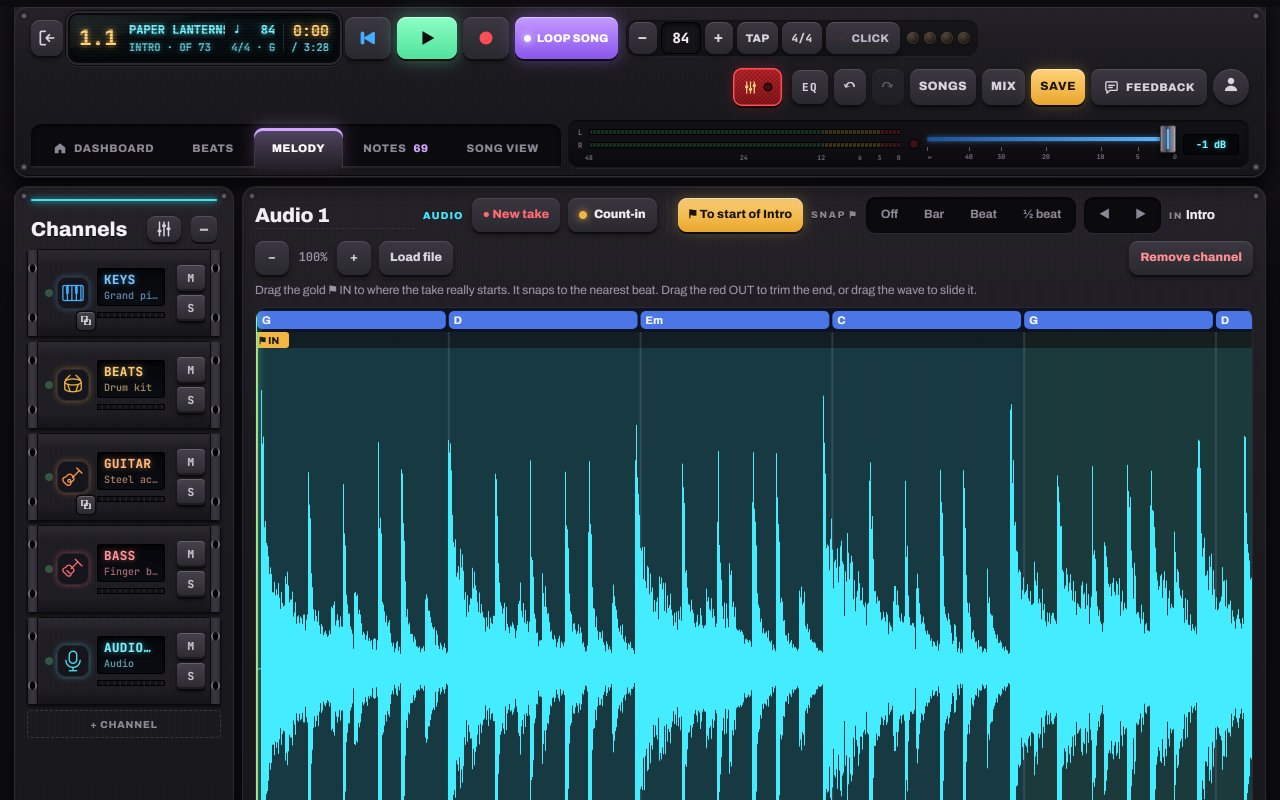
The take shows as a waveform. Drag the gold ⚑ IN flag to where the take really starts; it snaps to the bar or beat. Drag the red OUT to trim the end, slide the wave, or nudge it ◀ ▶ by 10 ms. Undo covers all of it.
- 1Drag the gold ⚑ IN to where the take starts
- 2⚑ To start of the part
- 3Snap: off, bar, beat, ½ beat
- 4Nudge by 10 ms
- 5Or load an audio file
-
Connect a MIDI keyboard or a remote
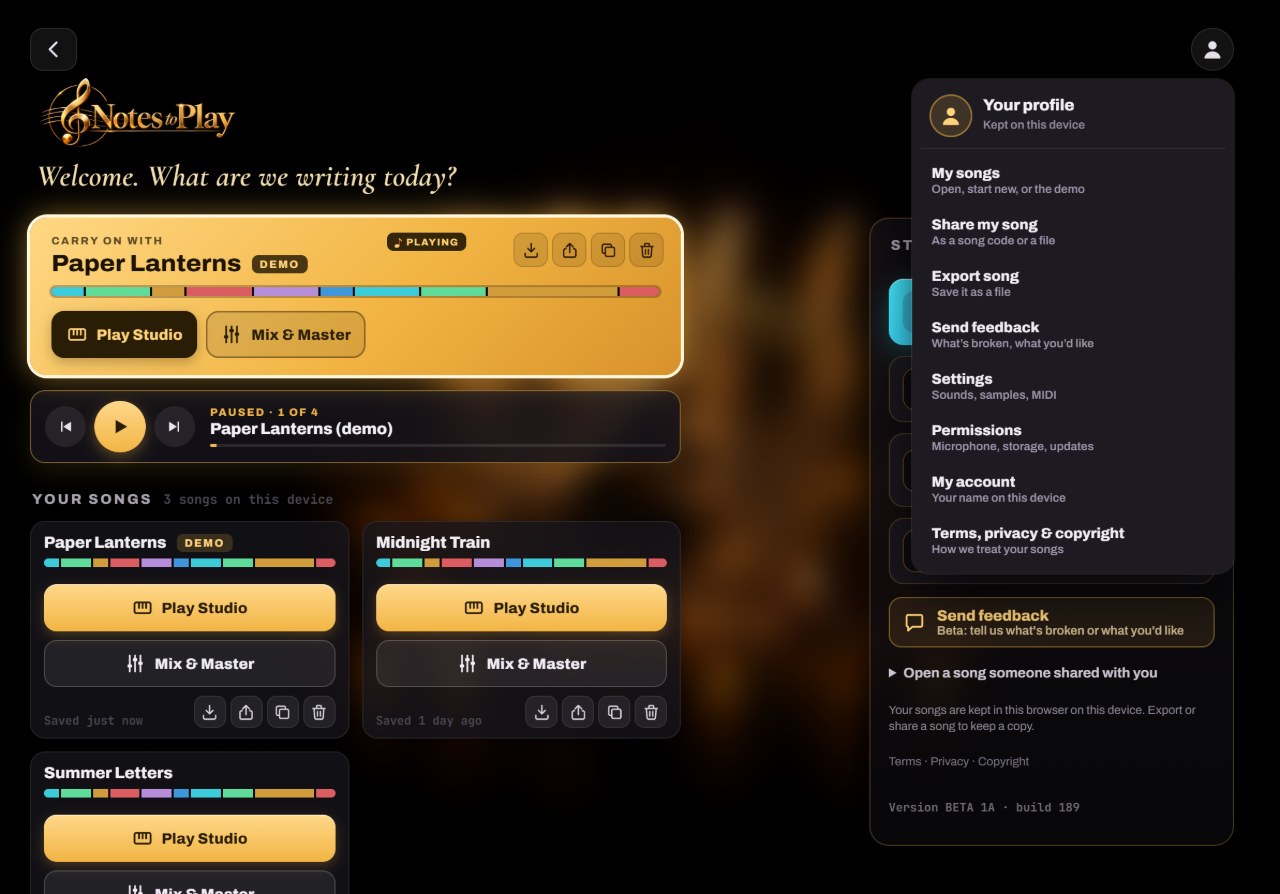
Tap the round profile button, then Settings → Controllers → Connect MIDI (Chrome and Edge). USB and Bluetooth MIDI keyboards and pads work; velocity and the sustain pedal too. Use Learn to map play, stop, record, undo or loop to any button, pedal or Bluetooth remote.
- 1Settings: sounds, samples and MIDI
- 2Permissions: microphone, storage, updates